Screen guide
How to use Arca, screen by screen: what each screen shows and what you can do there. The examples show a fictitious household.
Logging in
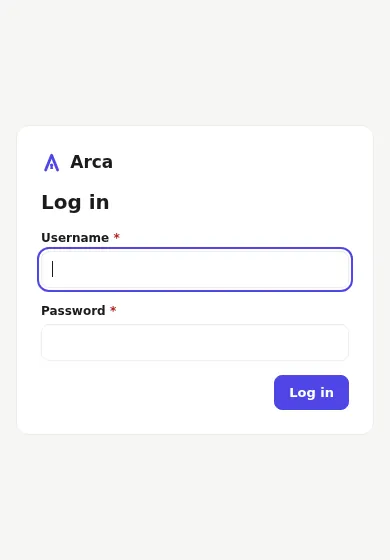
Sign in with your username and password. After 5 failed attempts from the same address, Arca makes you wait, longer after each new failure (see Login security).
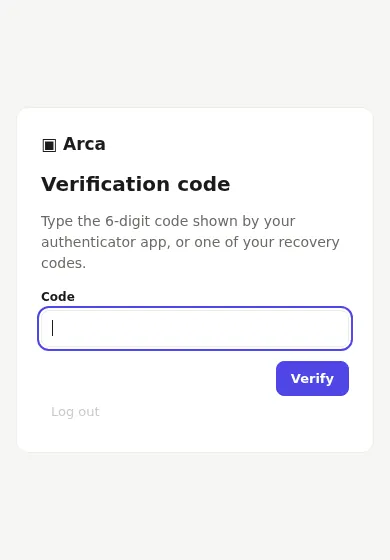
When two-factor authentication is on (page Security), Arca then asks for the 6-digit code of your authenticator app, or one of your recovery codes. Log out at the bottom of the card leaves without signing in.
Dashboard
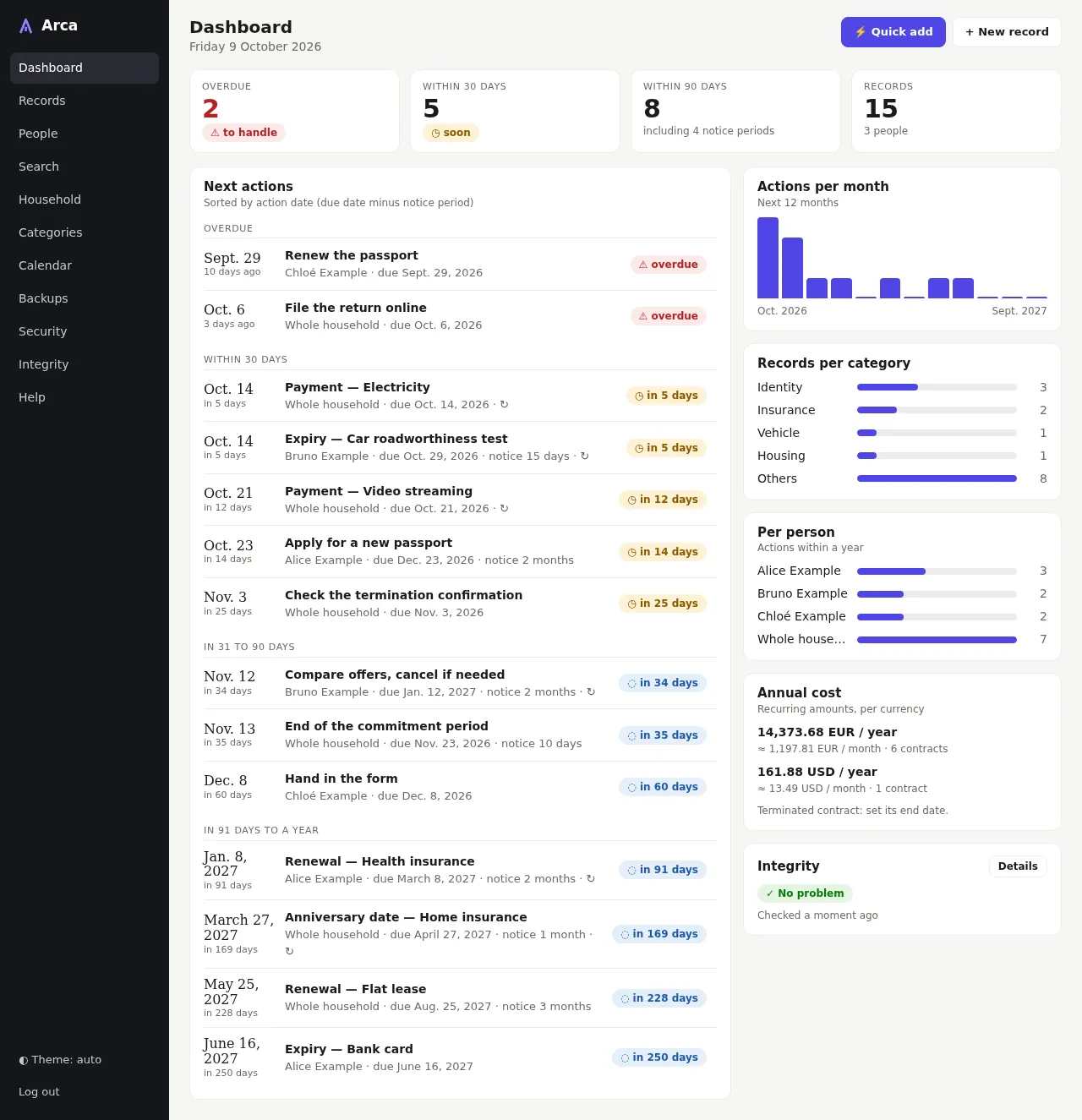
What you must act on, sorted by action date (the due date minus the notice period, see Concepts).
- Tiles: overdue actions, actions within 30 and 90 days (with how many come from a notice period), and the number of records and people.
- Next actions: grouped as overdue, within 30 days, in 31 to 90 days and in 91 days to a year. Each line gives the action date, the action, the person (or "Whole household"), the due date, the notice period, and ↻ for a recurring deadline. Click a line to open its record.
- Panels: actions per month over the next 12 months, records per category, actions per person within a year, the annual cost of your recurring amounts (per currency, with the monthly equivalent), and the result of the last integrity check.

On a phone, the menu folds into ☰ and the panels follow the list.
Records
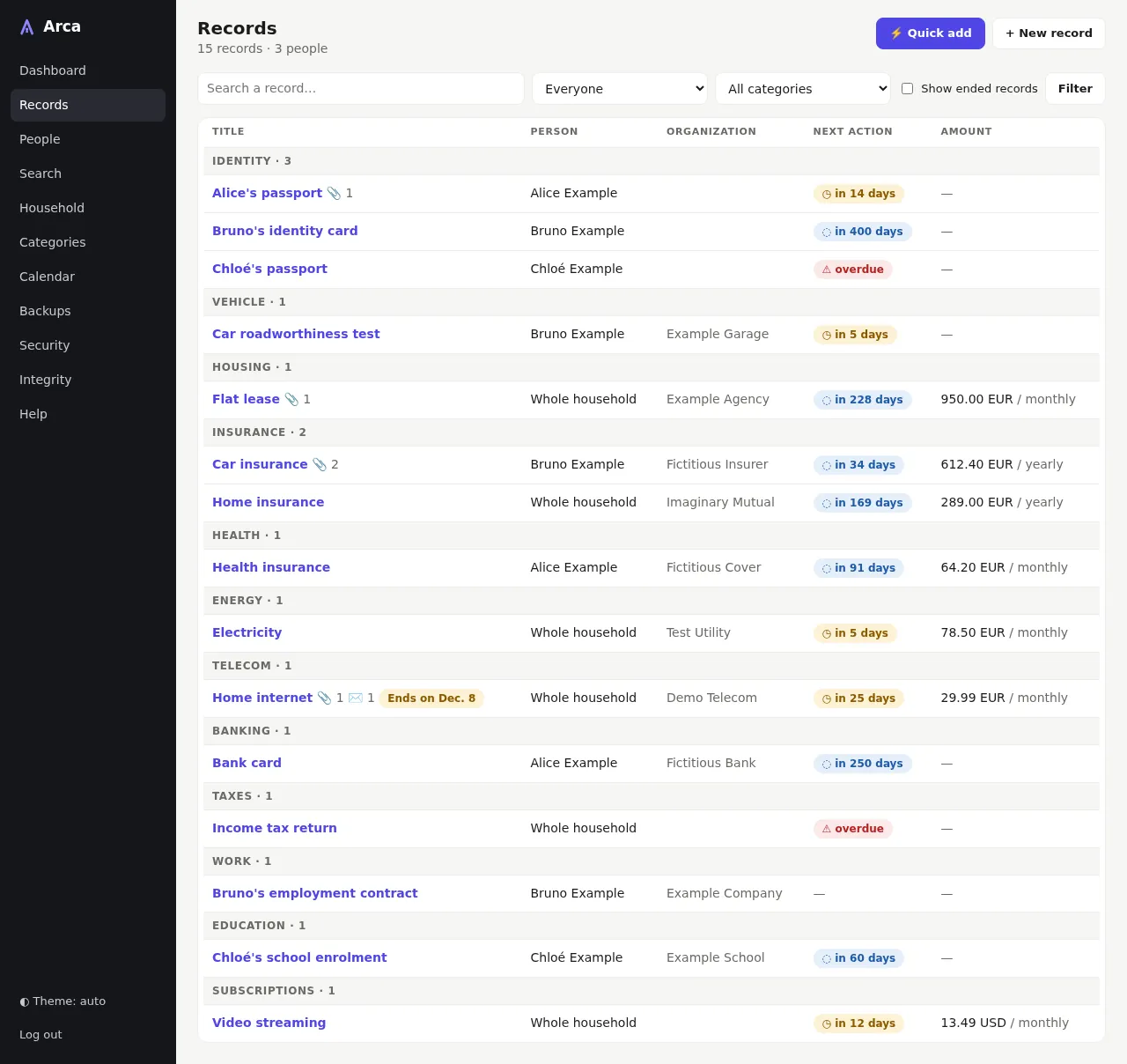
Every record, grouped by category, with its person, organization, next action and amount.
- Type words in the search box, choose a person (or the whole household) instead of Everyone, a category instead of All categories, tick Show ended records to include the records whose end date has passed (hidden by default), then Filter.
- 📎 counts the documents of a record, ✉️ its termination letters; "Ends on…" marks a record that will end.
- ⚡️ Quick add adds a record in a few taps (see below); + New record opens the full record form.
Quick add
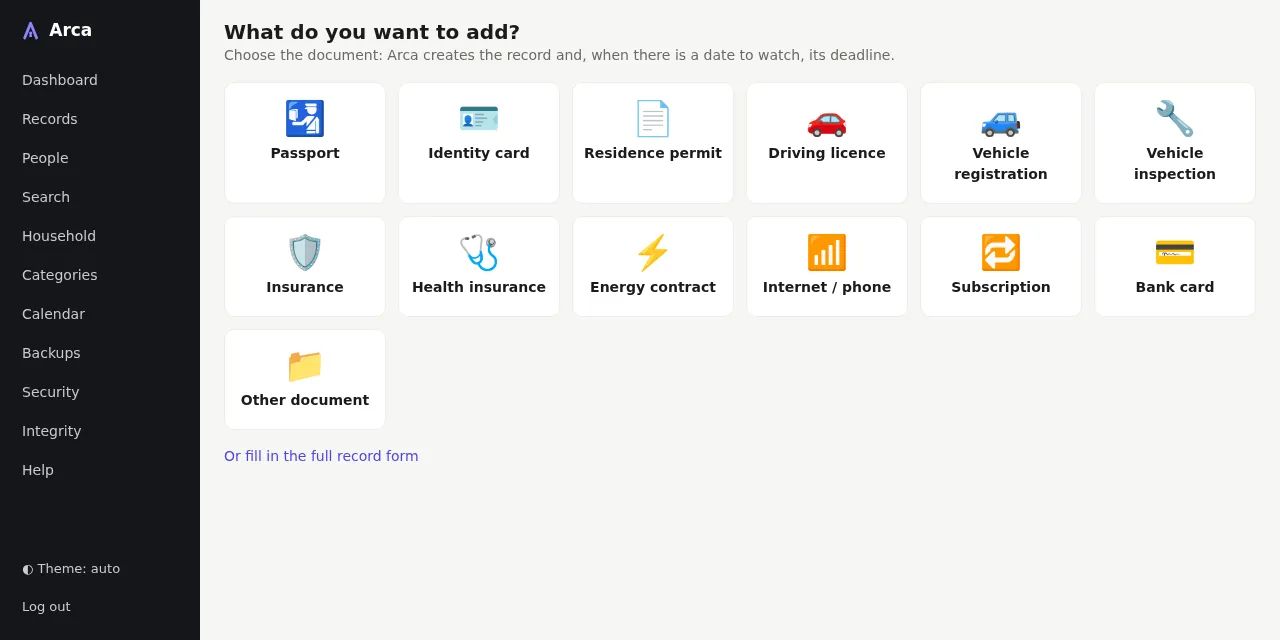
The easiest way to add a record, also on a phone. ⚡️ Quick add, on the dashboard and the record list, first asks what you want to add: passport, identity card, driving licence, vehicle registration, insurance, energy or phone contract, subscription, bank card…
For a passport, identity card or residence permit, Arca asks for the photo first:
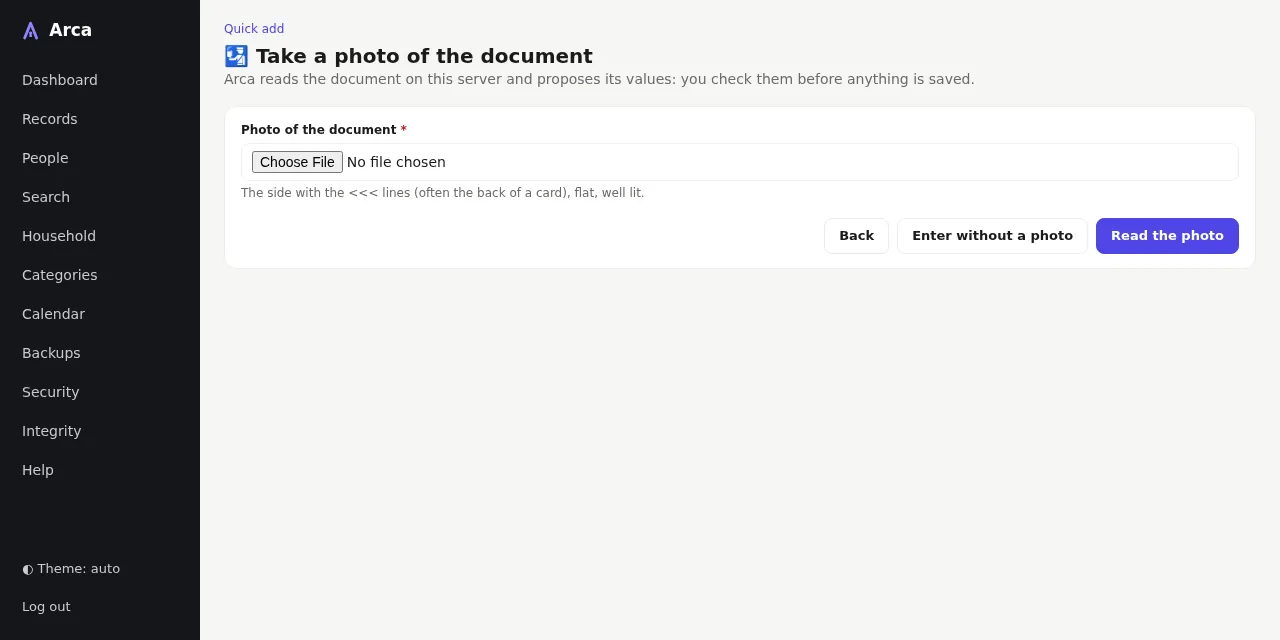
Photograph the page that carries the two or three lines of capitals and <<<
signs at the bottom (the machine-readable zone), flat, well lit, without
glare, with these lines whole and sharp. On a phone, the field offers the
camera. Read the photo reads it on the server and opens the form already
filled in; Enter without a photo gives the short form below.
Only the side with the machine-readable zone can be read
Arca reads only the machine-readable zone (MRZ): the two or three lines of
capitals and <<<. Photograph the side that carries them:
- passport: the photo page, lines at the bottom;
- identity card, residence permit: often the back (the front, with the photo, has no zone on many recent cards);
- an older card may carry the zone at the bottom of the front: it is then read in part when the zone holds no expiry date.
Another side, a driving licence or a vehicle registration has no such zone: the message lines not found is expected. Enter these documents by hand.
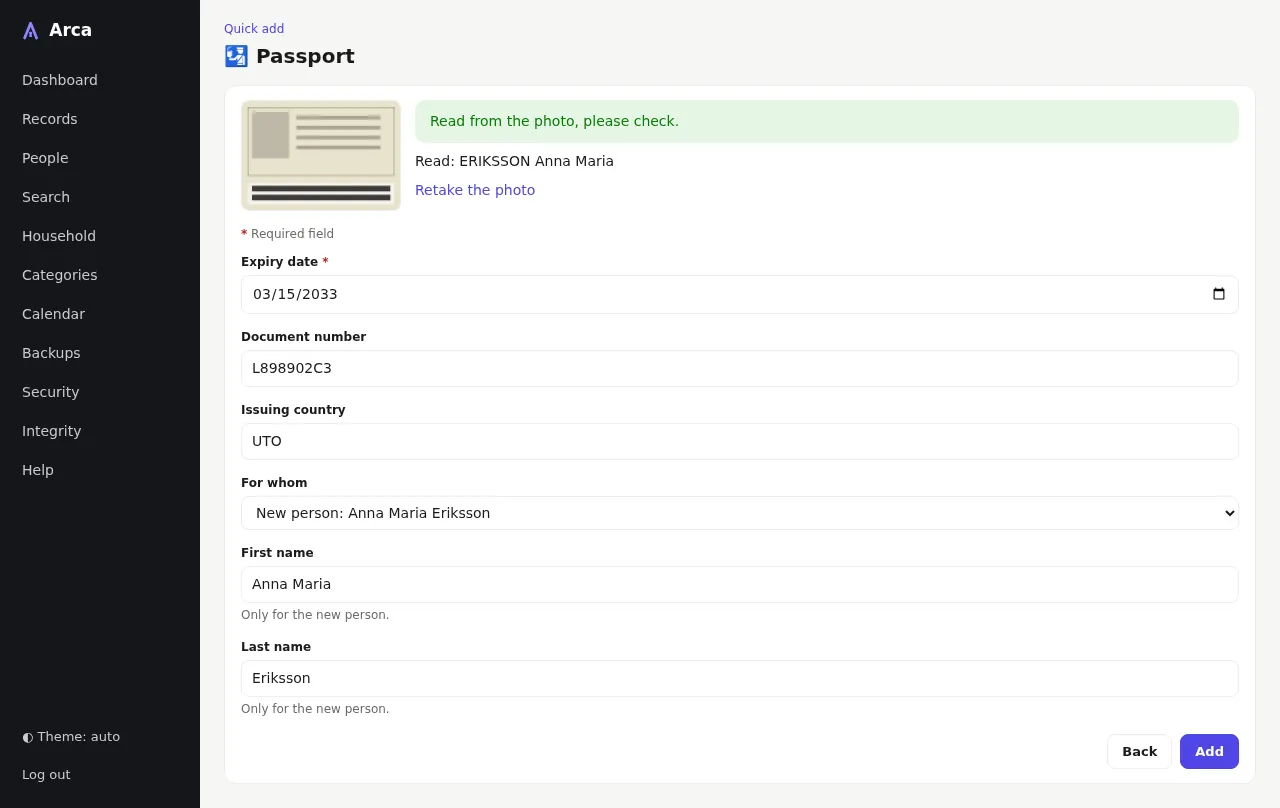
Check what was read before anything is saved: nothing is recorded until you press Add.
- The expiry date, the document number and the issuing country are filled in. Arca does not keep the birth date, the nationality or the sex.
- If the name matches someone in the household, that person is chosen. If not, Read: NAME Given names is shown and For whom offers New person: Given names Name, chosen by default: the person is created with the first name and surname below it (correct them if needed, for accents or hyphens). Choose Whole household or someone else to create nobody. Two people with the same name are never merged: choose the right one in For whom.
- Retake the photo replaces the photo and reads again.
- If the photo cannot be read, a message says why (lines not found, document read in part, unsupported format) and the form stays usable by hand. Without a complete reading, only the sure values are proposed.
The photo is added to the record's documents when you add it. Without the reading program (see Installation), Quick add shows the short form straight away.
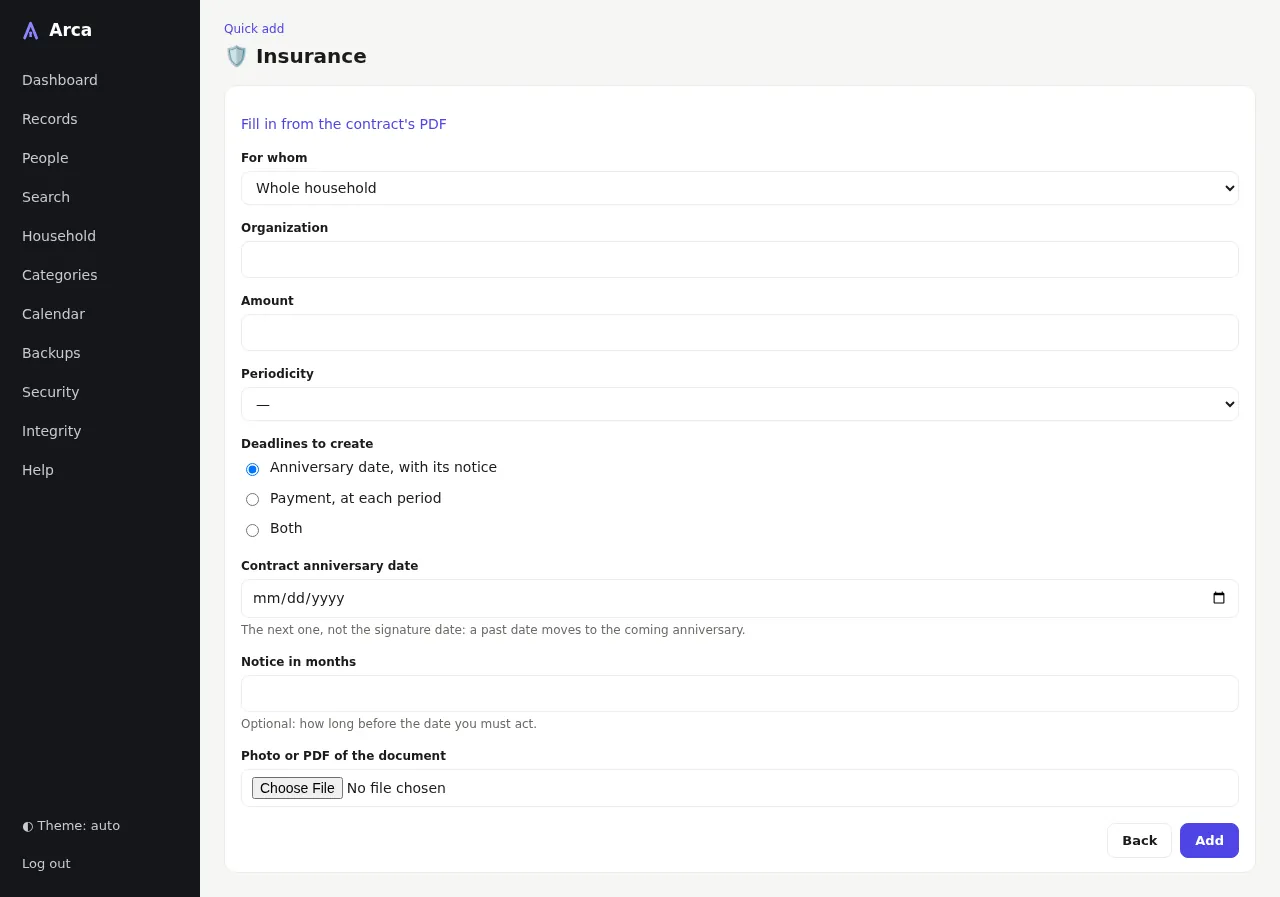
For the other documents, a few fields only:
- For whom: a person, or Whole household;
- the date, named after the document: Expiry date, Contract anniversary date…; for a contract, the next one: a past date (the signature date, for instance) moves to the coming anniversary;
- for a contract (insurance, energy, internet or phone, subscription…): the organization, the amount and how often you pay (the contract then counts in the annual cost), and the deadlines to create: the anniversary date with its notice in months (to cancel in time), a payment at each period from the next payment date (useful without direct debit), or both;
- a photo or PDF of the document: on a phone, the field offers the camera.
Add creates the record in the right category, its deadlines (repeated every year, or at each payment, for a contract) and the document, then opens the record. Complete it later with Edit if you wish.
For a contract (insurance, energy, internet or phone, subscription…), Fill in from the contract's PDF reads a PDF downloaded from the organization's site:
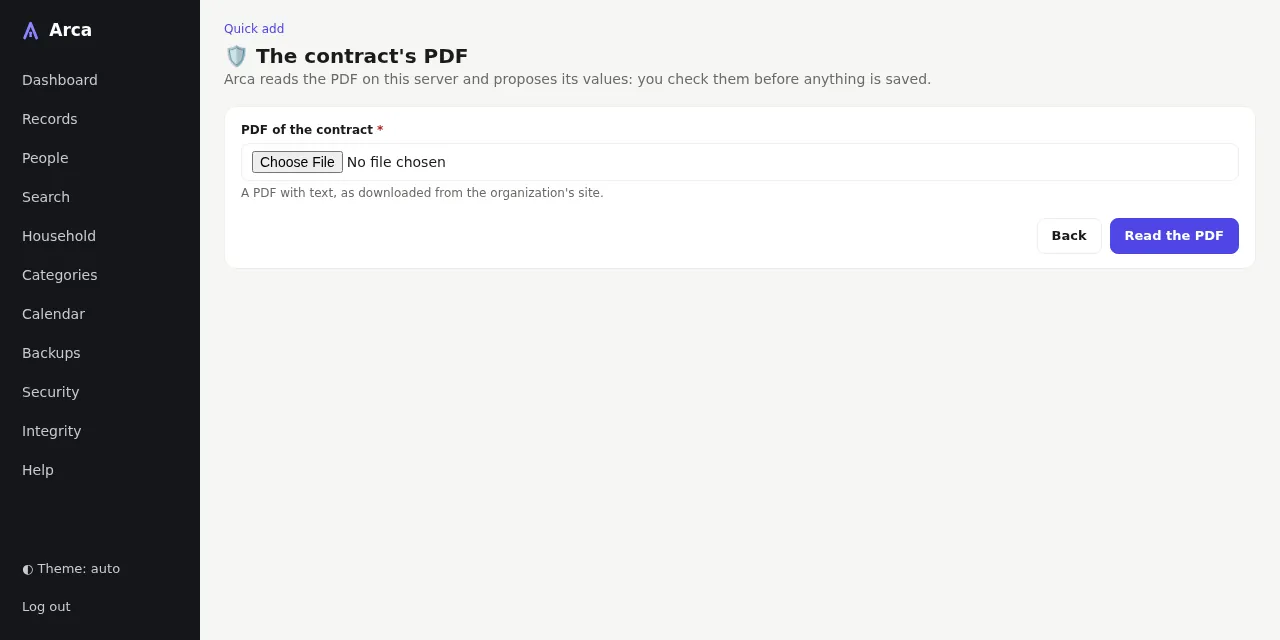
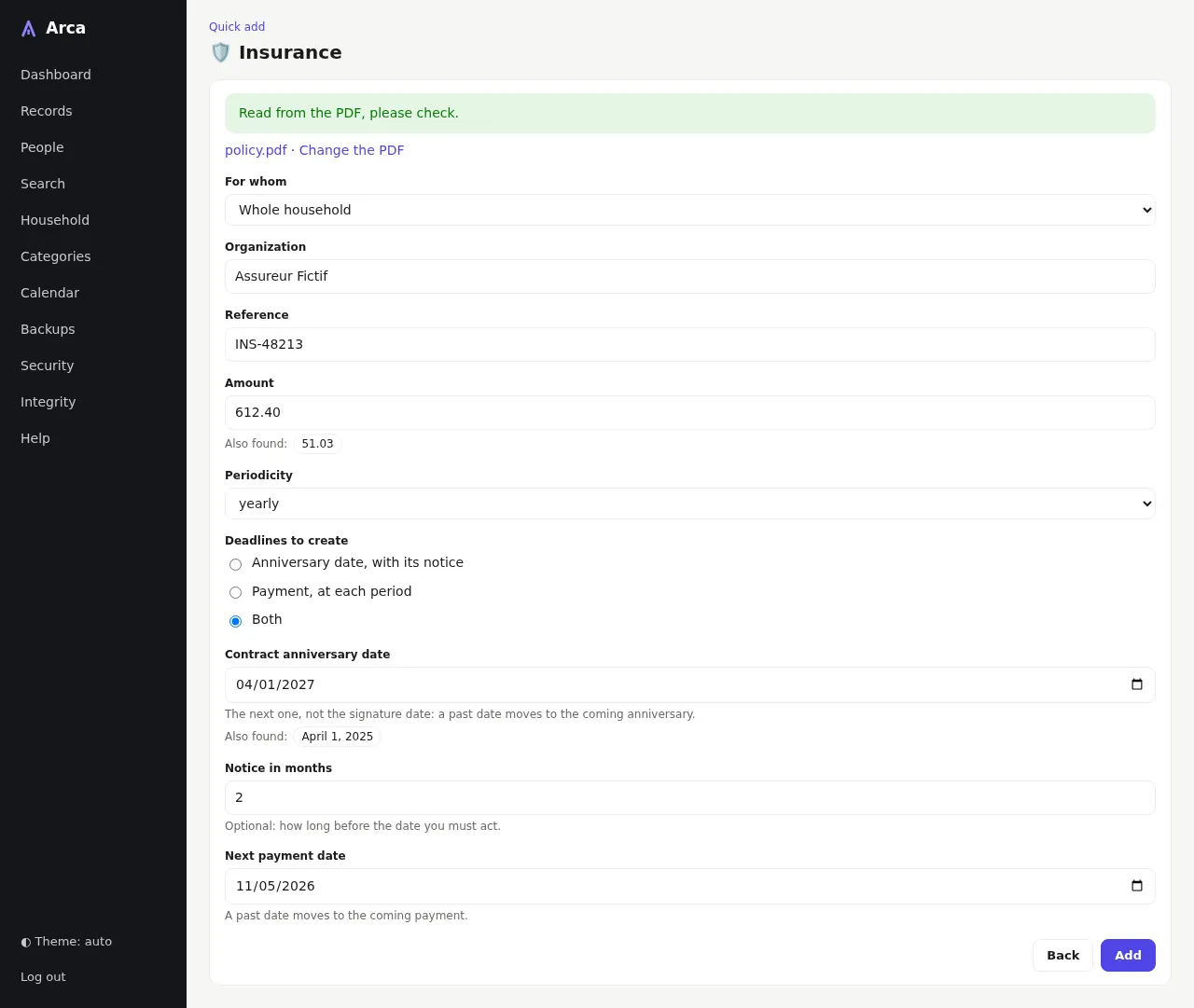
The organization, the reference, the amount and how often you pay, the anniversary date, the next payment and the notice are proposed when the PDF announces them; Also found lists the first five other values, a click puts one in its field. An amount in another currency than the household's is only listed there. Check them: nothing is saved before Add, and the PDF becomes the record's document. A scanned PDF holds no text: fill in the fields by hand.
A record
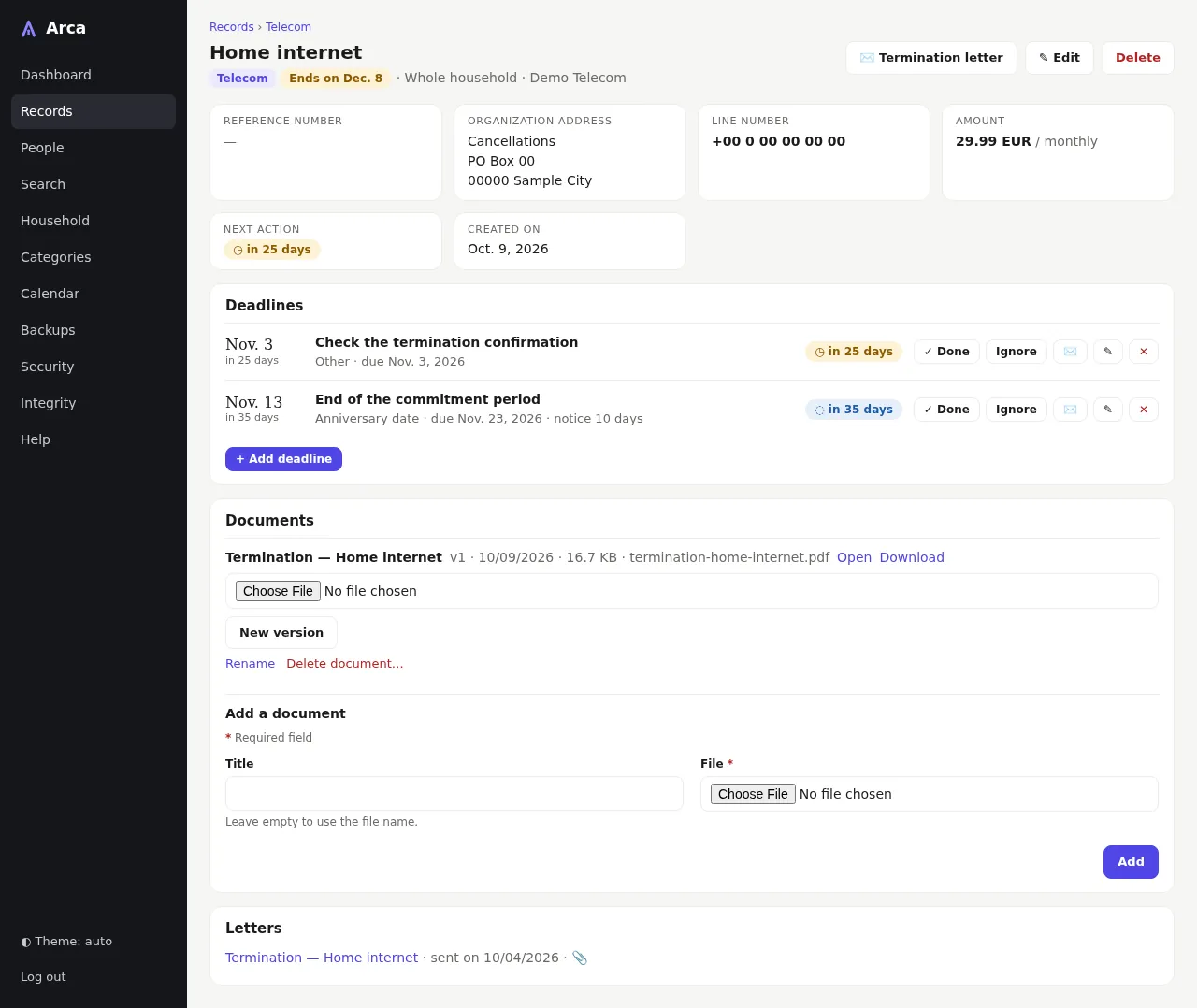
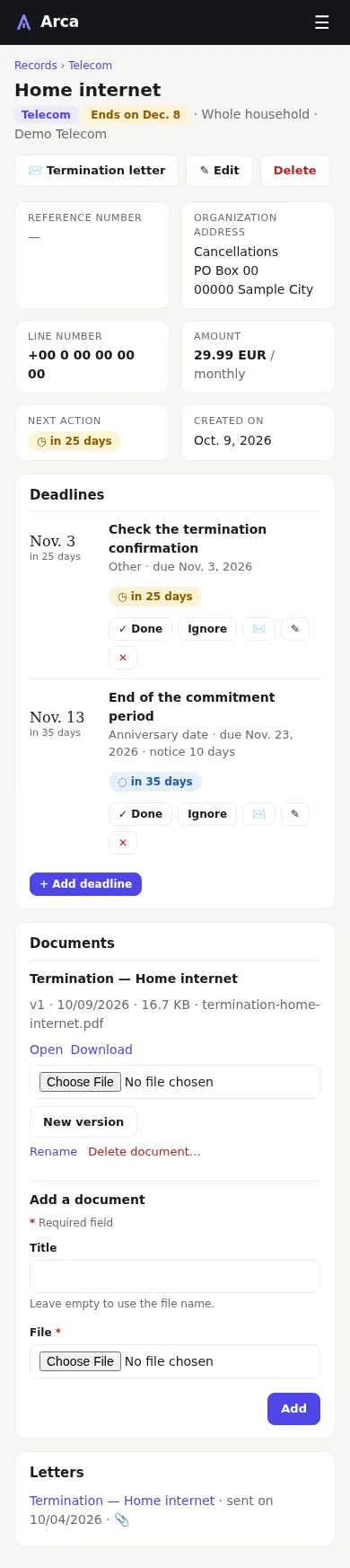
- Header: category, end badge, person and organization; Termination letter, Edit and Delete.
- Details: reference number, organization address, the category's specific fields, amount and periodicity, next action, creation date.
- Deadlines: each with its action date, kind, due date and notice period. Done marks it handled (a recurring deadline then creates the next one), Ignore sets it aside, ✉️ writes a termination letter from it, ✎ edits it, ✕ deletes it. + Add deadline adds one without leaving the page.
- Documents: each document with its versions; Open, Download, New version, Rename, Delete document…; Add a document below (PDF, JPEG, PNG, WebP or HEIC).
- Letters: the record's termination letters with their status; 📎 when the letter is kept as a document.
Record form
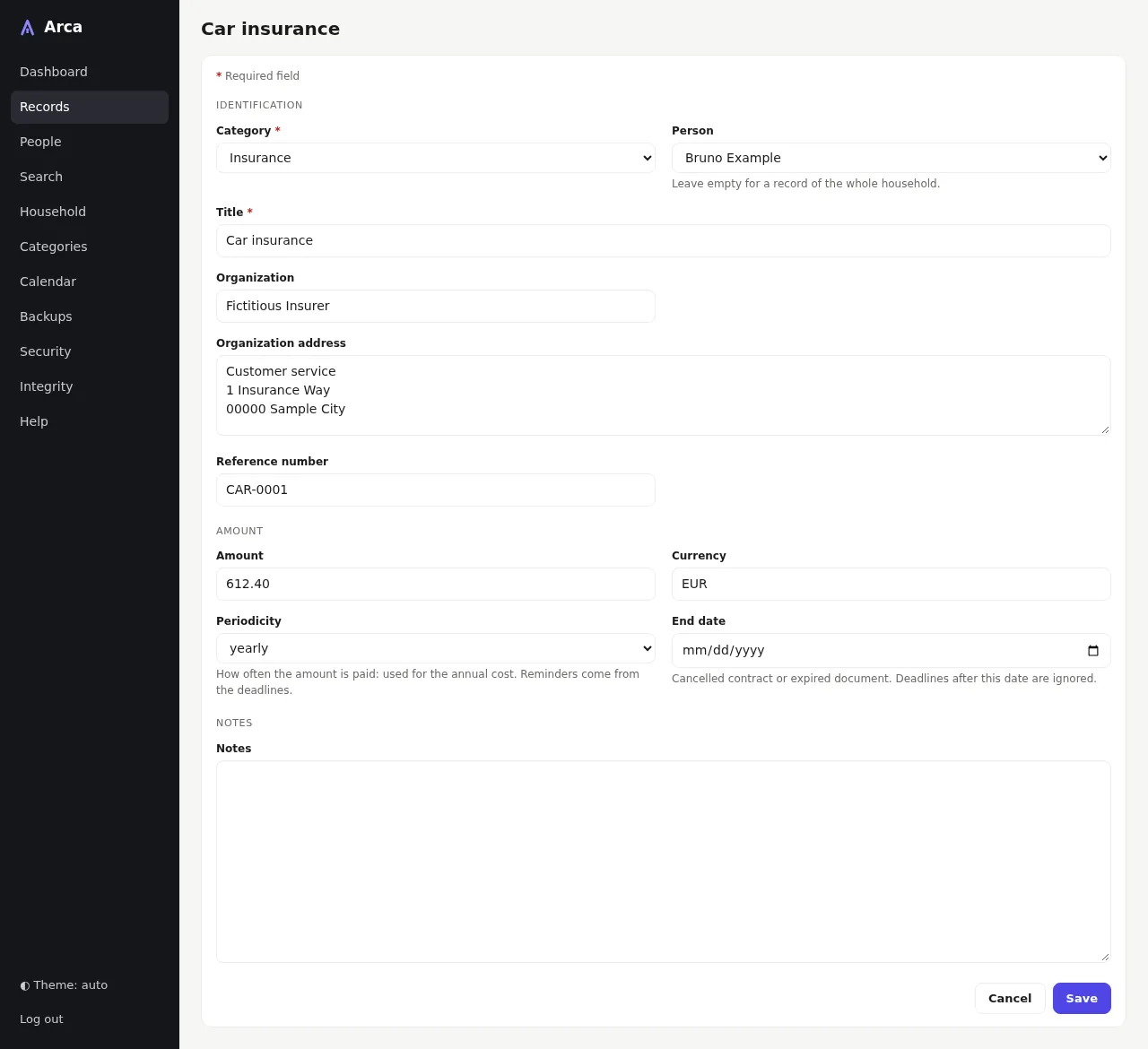
Fields marked with a red asterisk are required, as the legend at the top says.
- Identification: category, person (empty for the whole household), title, organization and its address (used in letters), reference number. The category's specific fields follow, and change with the category.
- Amount: amount, currency (the household's by default) and periodicity, counted in the annual cost; End date for a cancelled contract or an expired document: deadlines after it are set aside.
- Notes: free text, found by the search.
In a category with assisted reading (see Categories), the link Fill in from a photo of the document in the form reads a photo the same way and fills in the expiry date and the document number; the photo is added to the record's documents when you save. As in Quick add, photograph the side with the machine-readable zone.
Termination letter
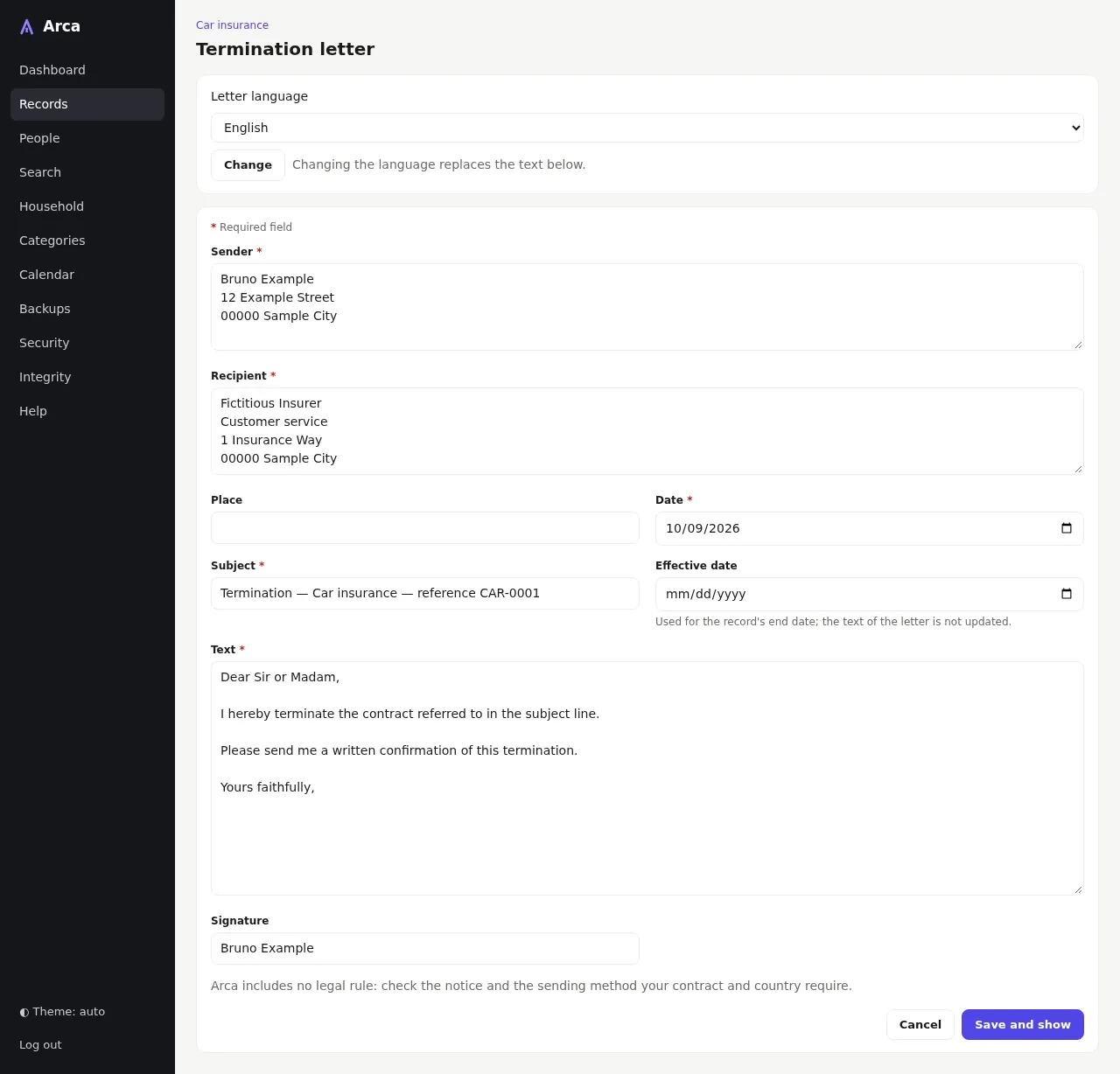
Termination letter prepares a letter from the record: your name and address (the person's own address when set, else the household's), the organization's address, the subject with the reference number, the effective date and a neutral text.
- Letter language and Change rewrite the text in English or French, whatever the interface language.
- Every field is editable for this letter only. Arca includes no legal rule: check the notice and sending method your contract and country require.
- Save and show keeps the letter as a draft and opens it.
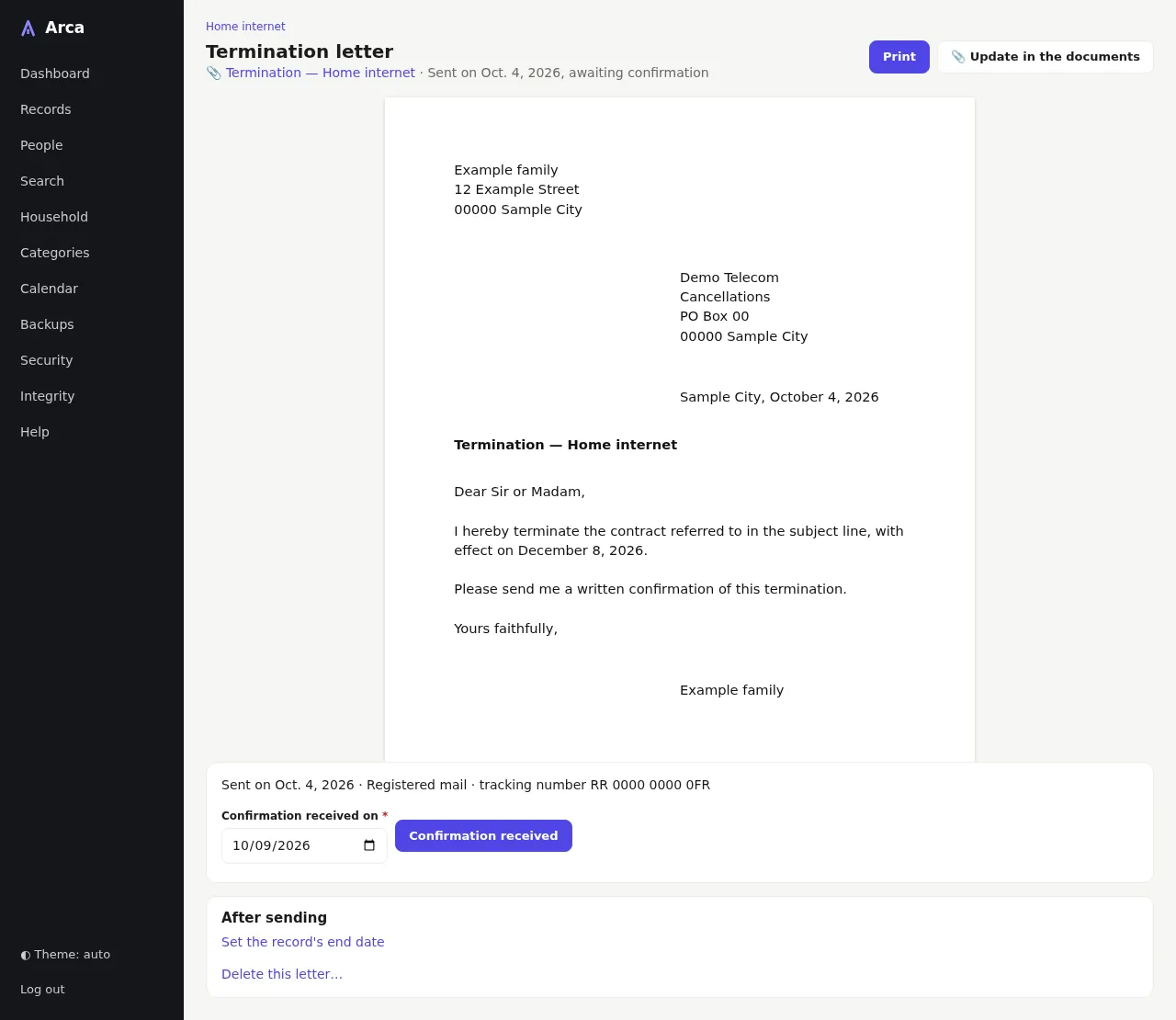
- Print prints the letter alone, on A4 (or saves it as PDF from the print dialog); Add to the record's documents keeps it as a PDF document of the record; once kept, the button reads Update in the documents and adds a new version when a draft changed since.
- Mark as sent records the date, the sending method, a tracking number, and can create a deadline to check the confirmation (30 days later by default). A sent letter can no longer be changed.
- Confirmation received closes the follow-up.
- After sending: set the record's end date (prefilled with the effective date), mark the deadline the letter was written from as done, or delete the letter.
People and household
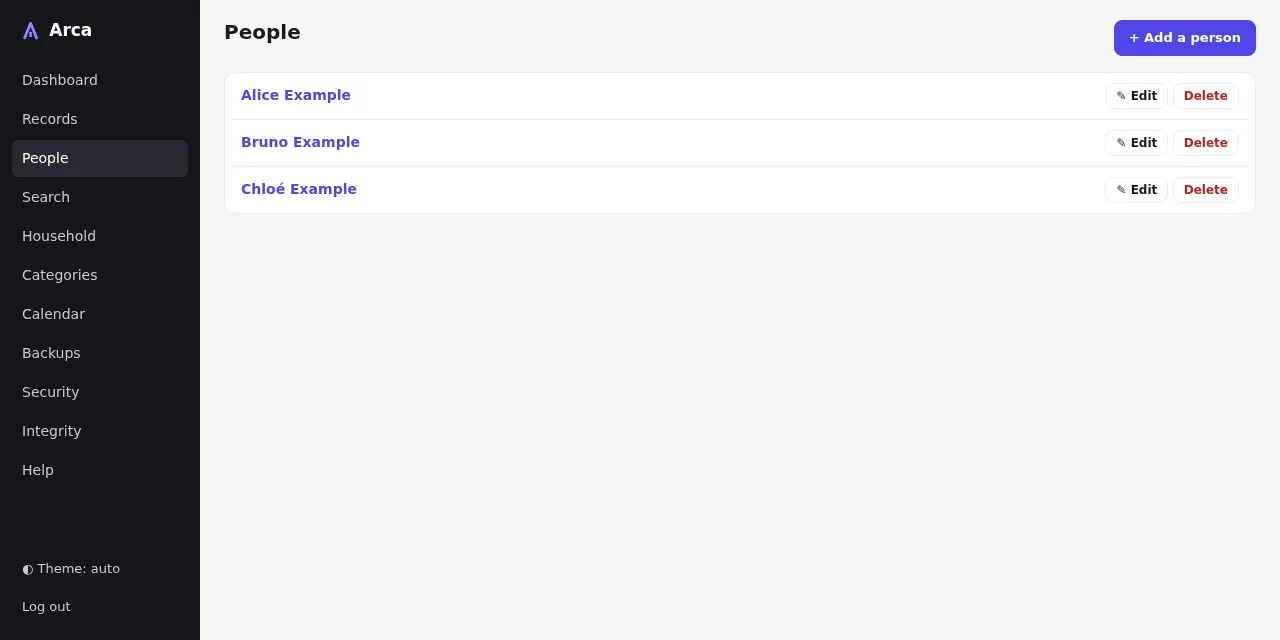
The people of the household. + Add a person, Edit, Delete. When the person still has records, Delete lists them and asks who they go to, another person or the whole household, then moves them and deletes the person (Move and delete). A person's own address replaces the household's in their letters.
Each record moves with its deadlines, documents and letters; letters keep the text they were written with (sender, addresses): what was sent stays as it was. The deleted person's own calendar feed stops working; their deadlines appear in the feed of whoever receives the records.
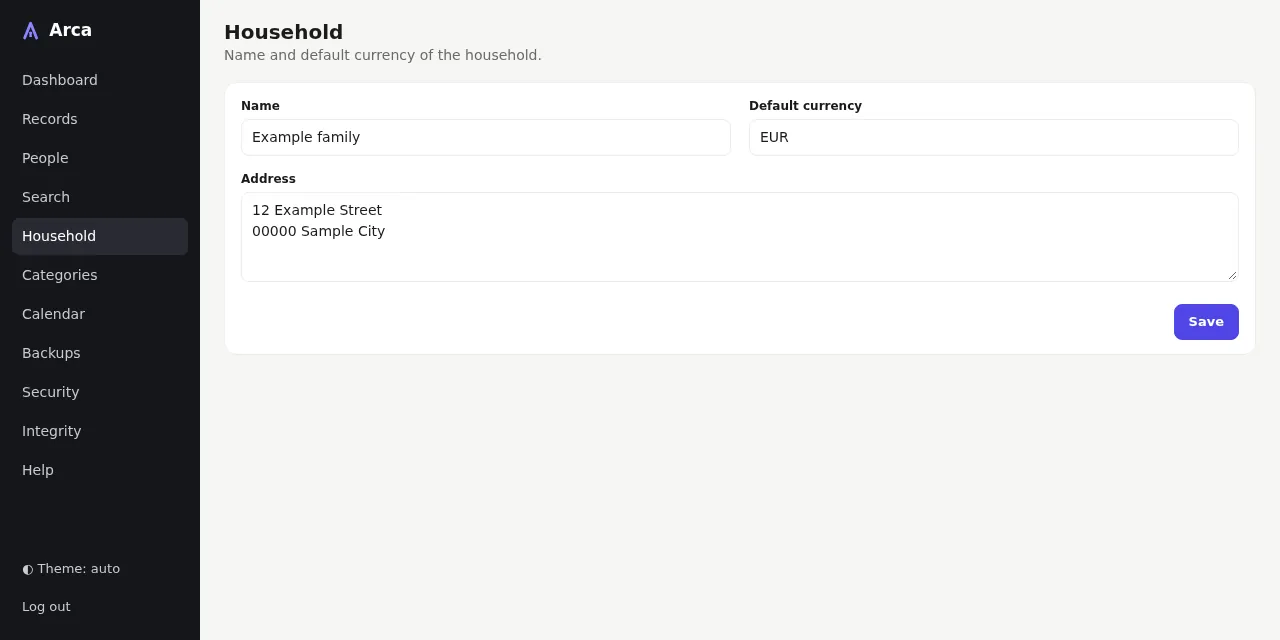
The household's name, its default currency (prefilled in new records) and its address.
Categories
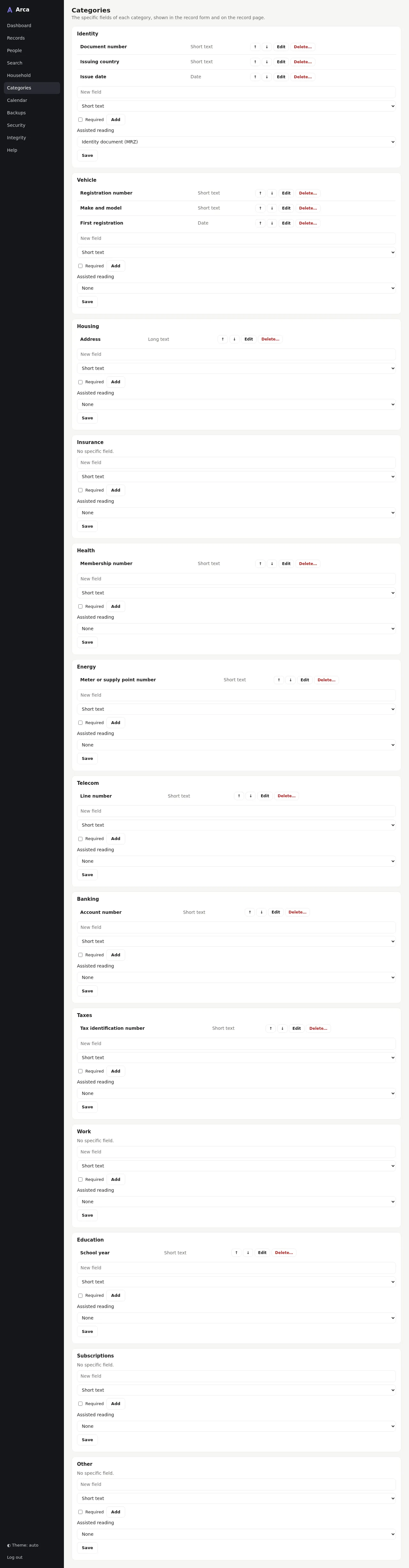
The specific fields of each category, shown in the record form and on the record page. ↑ ↓ reorder them, Edit renames one or makes it required, Delete… removes it with its values (after a confirmation). Below each category, add a field: its label, its type (short text, long text, date, number; it cannot change later) and whether it is required.
The Assisted reading setting of a category turns on the reading of a photo of an identity document (its machine-readable zone) in Quick add and in the record form; it is on for Identity by default. Only documents with such a zone can be read: in this category, a driving licence is entered by hand.
Search
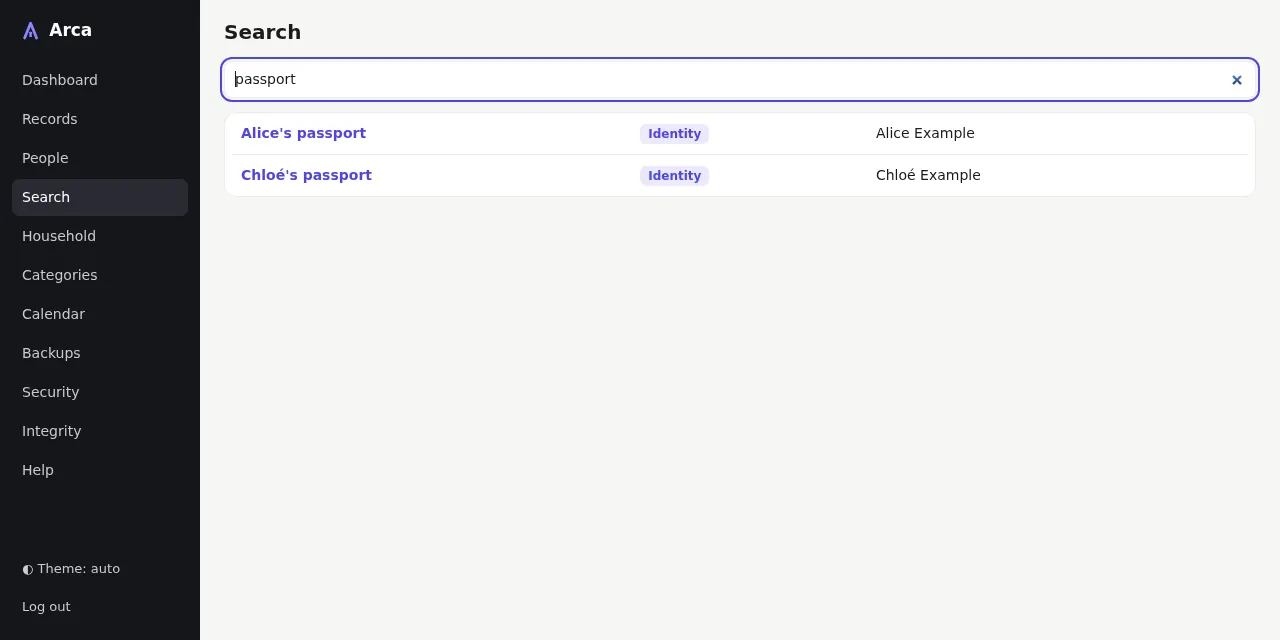
Results appear while you type. The search ignores accents and case, requires every word, and looks in titles, organizations, references, notes, specific fields and document titles; ended records are included. It also finds words inside PDF documents (their current version), when the PDF holds text; scanned documents are not read yet.
Calendar
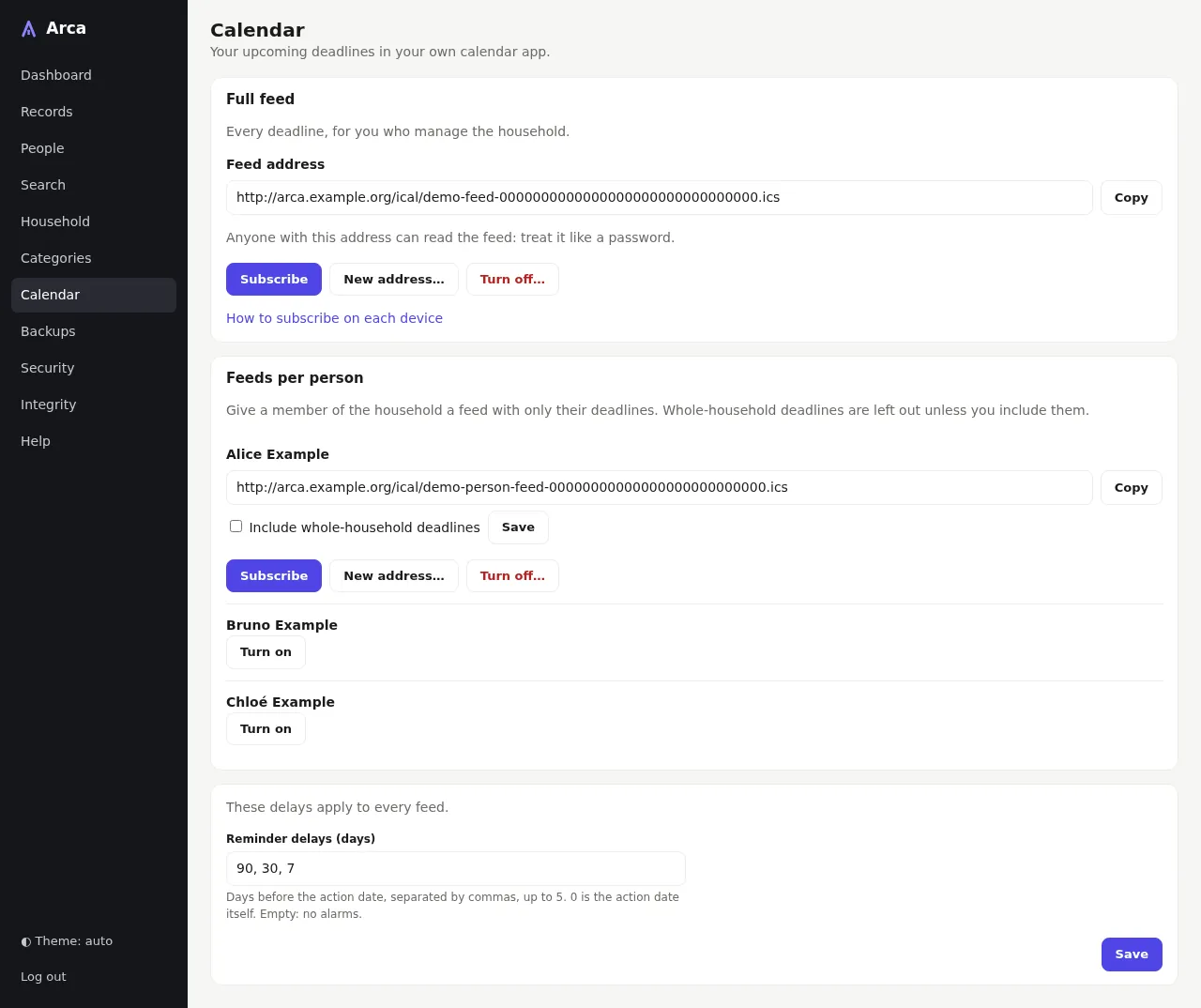
Your upcoming deadlines in your own calendar app (see Calendar feed).
- Full feed: every deadline. Its address works without a password: treat it like one. Copy (shown over HTTPS only, where the browser allows it), Subscribe, New address… (the old one stops working) and Turn off….
- Feeds per person: a feed with only that person's deadlines, plus the whole household's when Include whole-household deadlines is ticked.
- Reminder delays: the alarms, in days before the action date (90, 30 and 7 by default), for every feed.
Backups
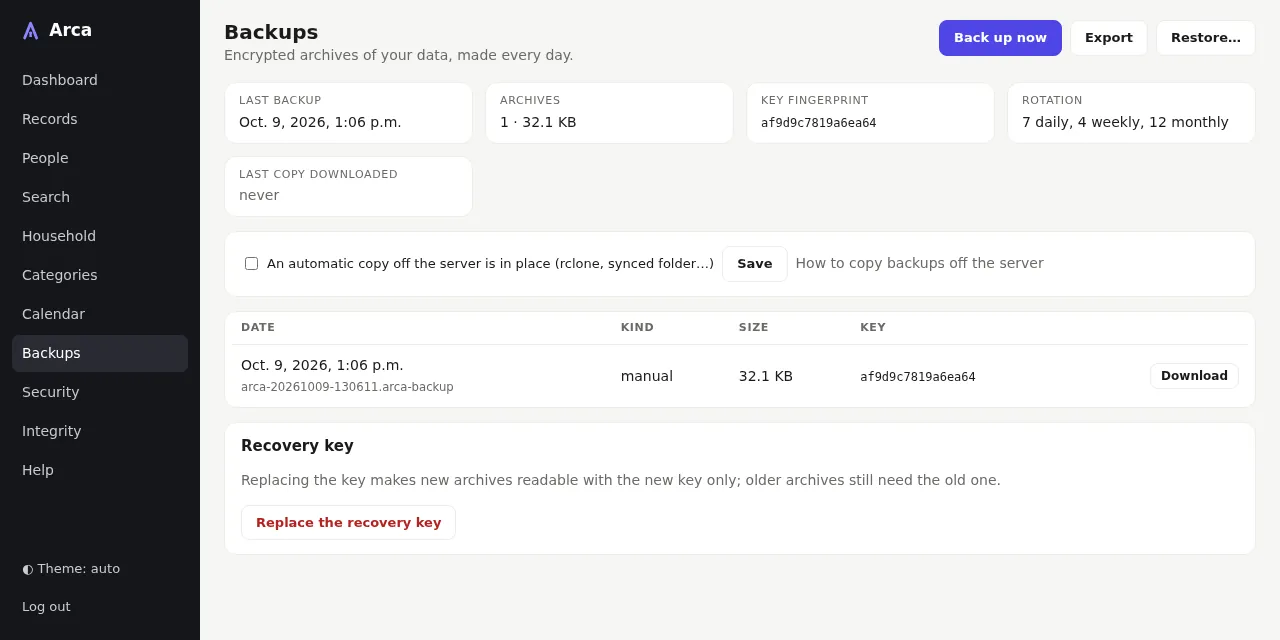
Daily encrypted archives of your data (see Automatic backups).
- Back up now, Export (an archive to download) and Restore….
- The last backup, the number and size of the archives, the fingerprint of the recovery key, the rotation, and when you last downloaded a copy.
- Tick An automatic copy off the server is in place if a tool copies the archives elsewhere: the reminder to download one stops.
- The archives, each with Download; Replace the recovery key makes new archives readable with a new key only.
Security
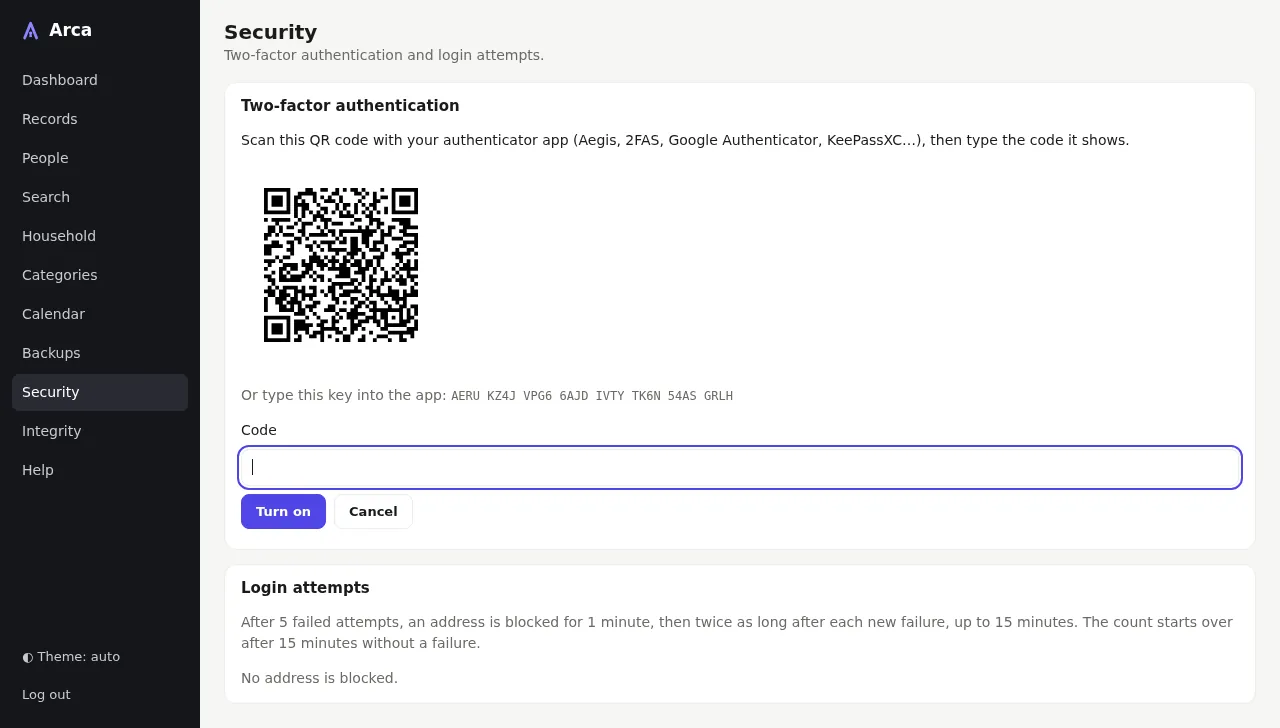
- Two-factor authentication: Turn on two-factor authentication shows a QR code to scan with an authenticator app and its key as text; type the code the app shows and Turn on (or Cancel). Arca then shows 10 recovery codes, once. Once on, the page shows how many recovery codes are left, Regenerate recovery codes and Turn off, both asking for a code.
- Login attempts: the rule, and the addresses currently blocked.
See Security and privacy for when two-factor is worth turning on.
Integrity
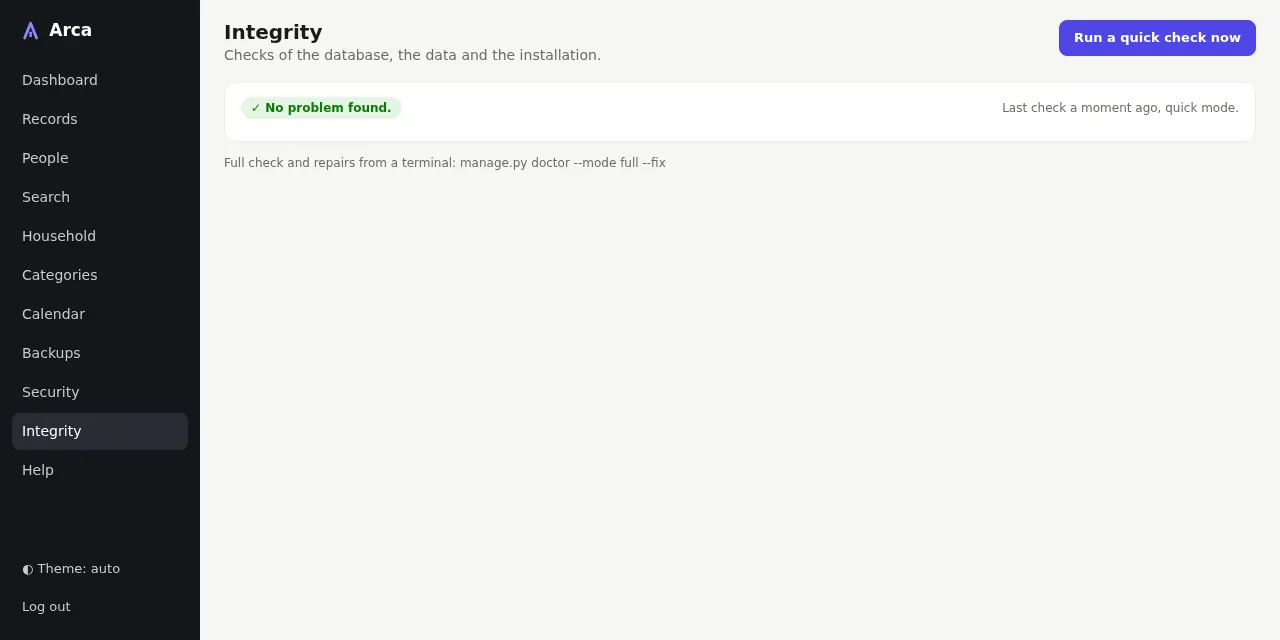
The result of the checks of the database, the data, the documents, the backups and the installation, also run when the container starts. Run a quick check now runs them again; the full check and repairs run from a terminal (see Integrity).